Email delivery
Configure how Rental Suite sends booking and inquiry emails: platform default mail, your own SMTP server, or Resend. This is separate from Email templates & notifications, which control what each message says.
Open Settings in the app and select the Email tab.
Choose a delivery method
| Method | Best for |
|---|---|
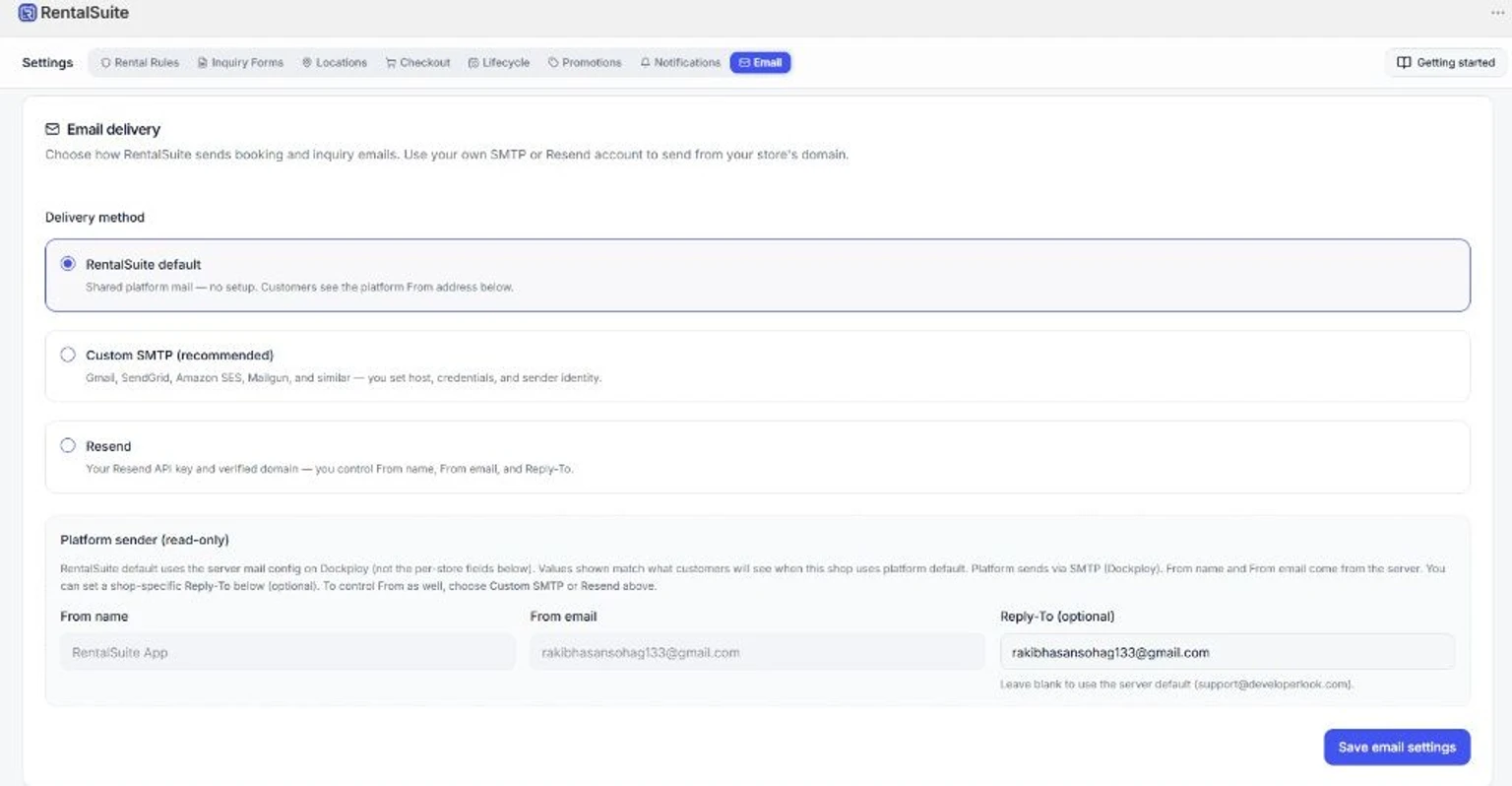
| Rental Suite default | Quick start — shared platform mail with no SMTP setup. From name and From email come from the server; you can set an optional shop Reply-To. |
| Custom SMTP (recommended) | Send from your domain via Gmail (App Password), SendGrid, Amazon SES, Mailgun, or similar. |
| Resend | Your Resend API key and a verified domain in Resend. You control From name, From email, and Reply-To. |
After you change options, click Save email settings. Rental Suite uses the saved configuration for booking and inquiry sends.
Rental Suite default
No merchant SMTP credentials are required. The Platform sender section shows the read-only From name and From email customers will see when this shop uses platform default.
You may set an optional Reply-To for this shop. Leave it blank to use the server default.
Custom SMTP
Use when you want messages to come from your store’s domain and your mail provider.
- Select Custom SMTP (recommended).
- Fill in Your sender identity — From name, From email, and optional Reply-To on a domain you control.
- Under SMTP server, enter host, port, encryption, username, and password.
- Save, then send a test email (below).
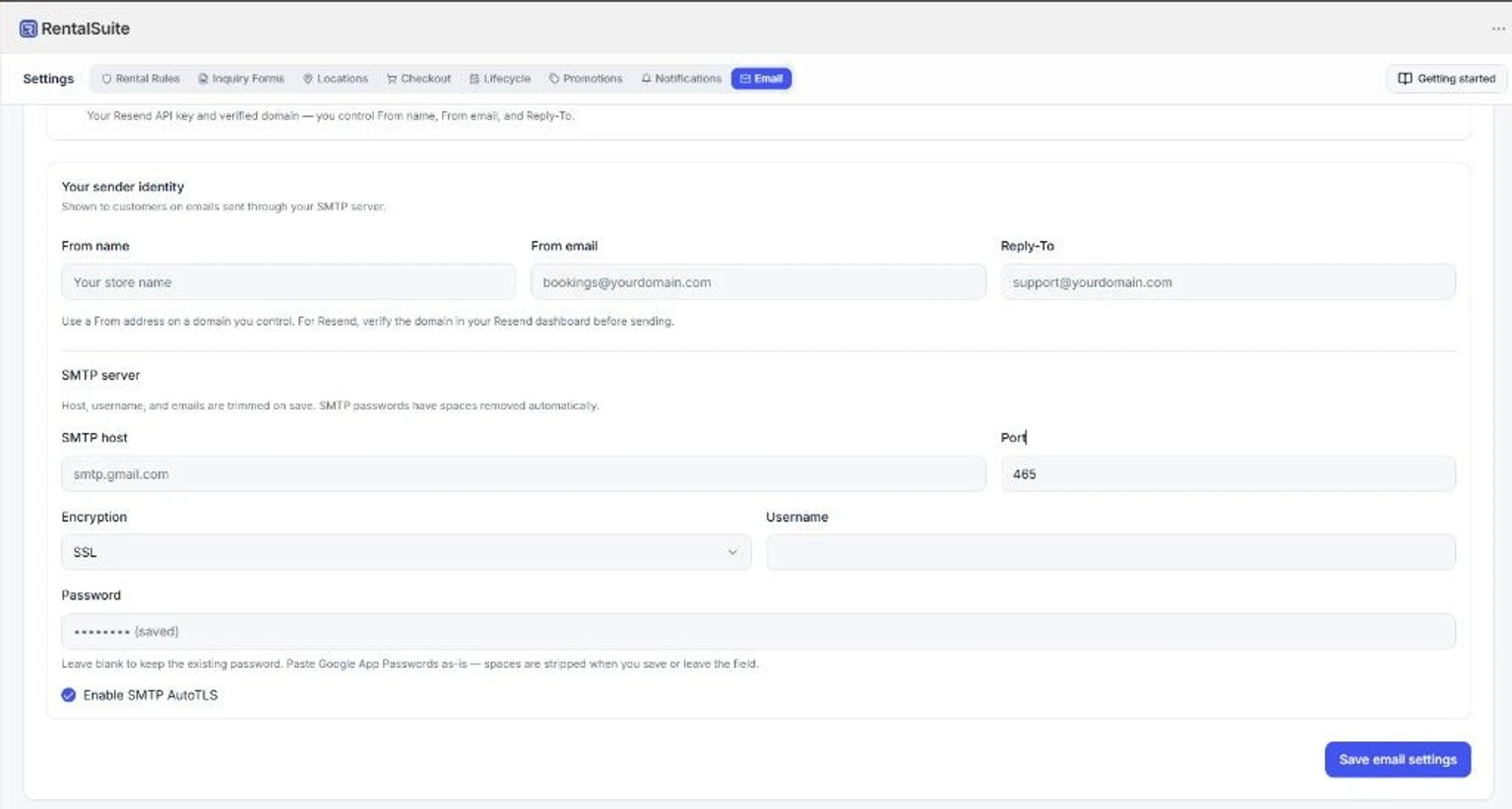
Password fields can be left blank on later saves to keep the existing secret. Host, username, and email fields are trimmed on save.
Resend
- Select Resend.
- Add your API key from resend.com (keys start with
re_). - Verify your sending domain under Domains in Resend.
- Set From name, From email, and Reply-To to match that verified domain.
- Save, then send a test email.
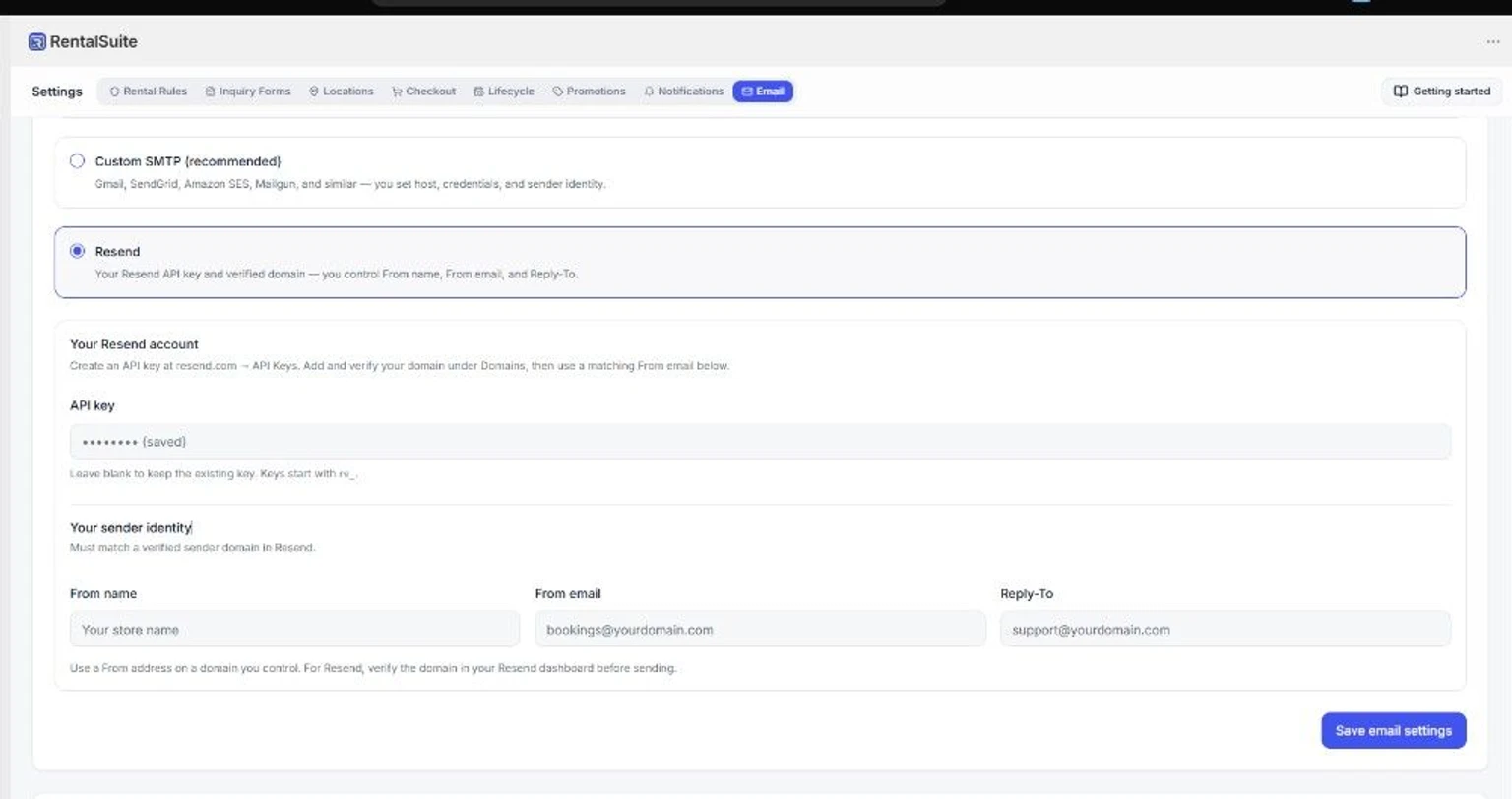
Leave the API key blank on later saves to keep the existing key.
Send test email
The Send test email card sends a short message using your saved delivery method. Save first if you just changed settings.
- Enter an inbox you can check in Send to.
- Click Send test.
- Confirm the message arrives before you rely on production booking emails.
Related setup
- Getting started in the app includes an Open Email settings step when you use platform default or need to confirm delivery.
- Email templates & notifications — template content, Shopify order confirmation Liquid, and in-app notifications.