Storefront rentals
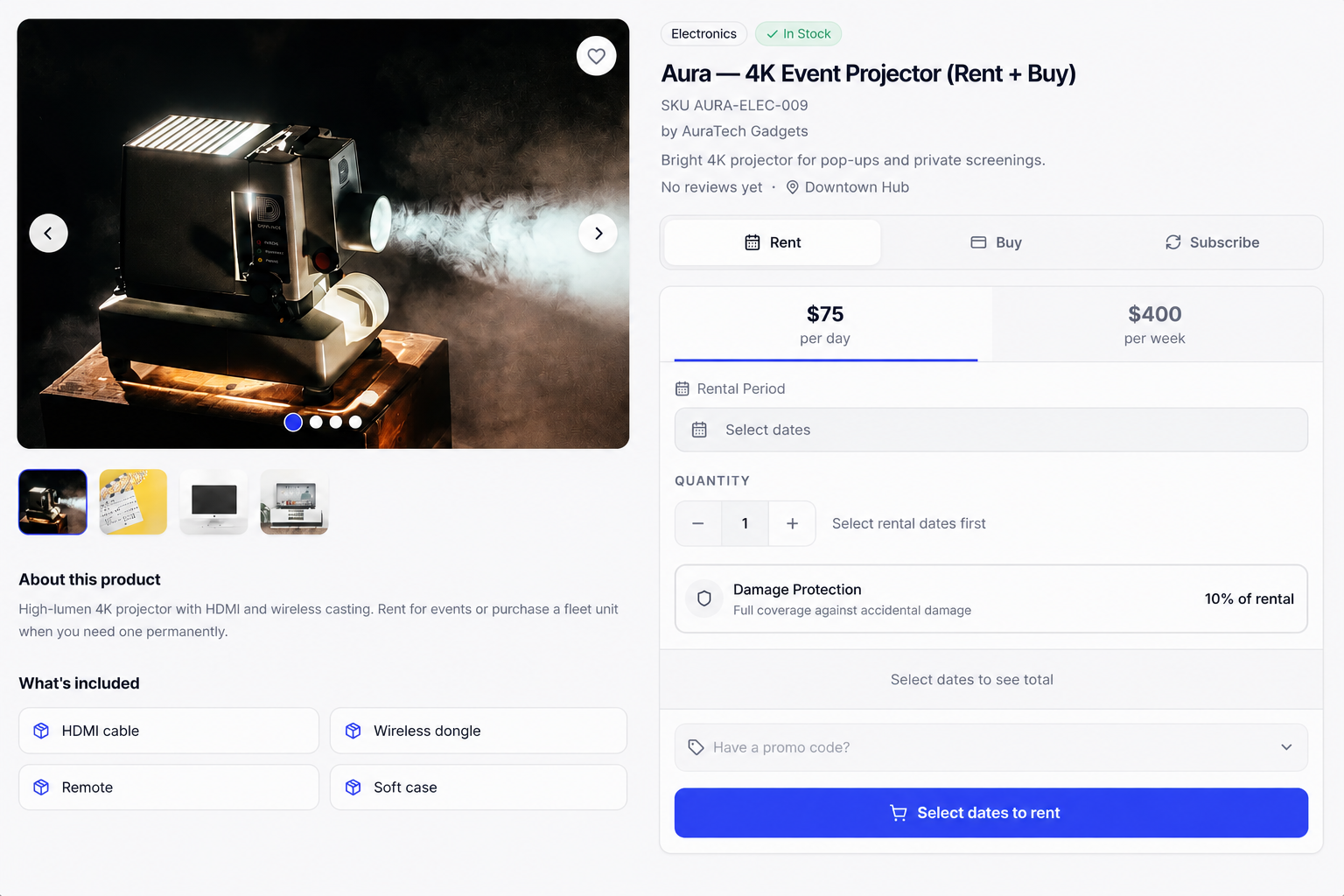
Publish Rent, Buy, and Subscribe on your Shopify product page using the Rental product page theme app block. Shoppers pick dates, see rates, and check out with the same availability rules as admin bookings.
What shoppers see
| Control | Purpose |
|---|---|
| Rent / Buy / Subscribe tabs | Modes you enabled on the product |
| Rates | Day, week, and month (as configured) |
| Select dates | Availability calendar with blocked dates and min/max rules |
| Damage protection | Optional upsell when enabled on the product |
| Checkout / cart actions | Holds and totals from the rental app proxy |
Link products first
The storefront only activates for products with a rental profile. See Products & inventory.
Storefront setup (required)
You need both of the steps below. App embeds alone do not put the rental UI on the product details page—you must add the Rental product page app block to your product template.
1. Add the Rental product page block (product template)
This is the block that shows Rent, Buy, Subscribe, dates, and rates on the product details page (PDP).
- In the app, open Storefront.
- Follow the link into the theme editor (product template).
- In the left sidebar, open Apps (or Add block → Apps).
- Add Rental product page as its own Apps section (full width) below the breadcrumb and above related products.
- Keep your theme’s Product information section enabled — do not hide it. Rental Suite picks the right PDP per product: rental UI for linked products, theme buy box for everything else on the same template. Keep the breadcrumb visible.
- Click Save (top right).
- Open a linked product on the Online Store and hard-refresh.
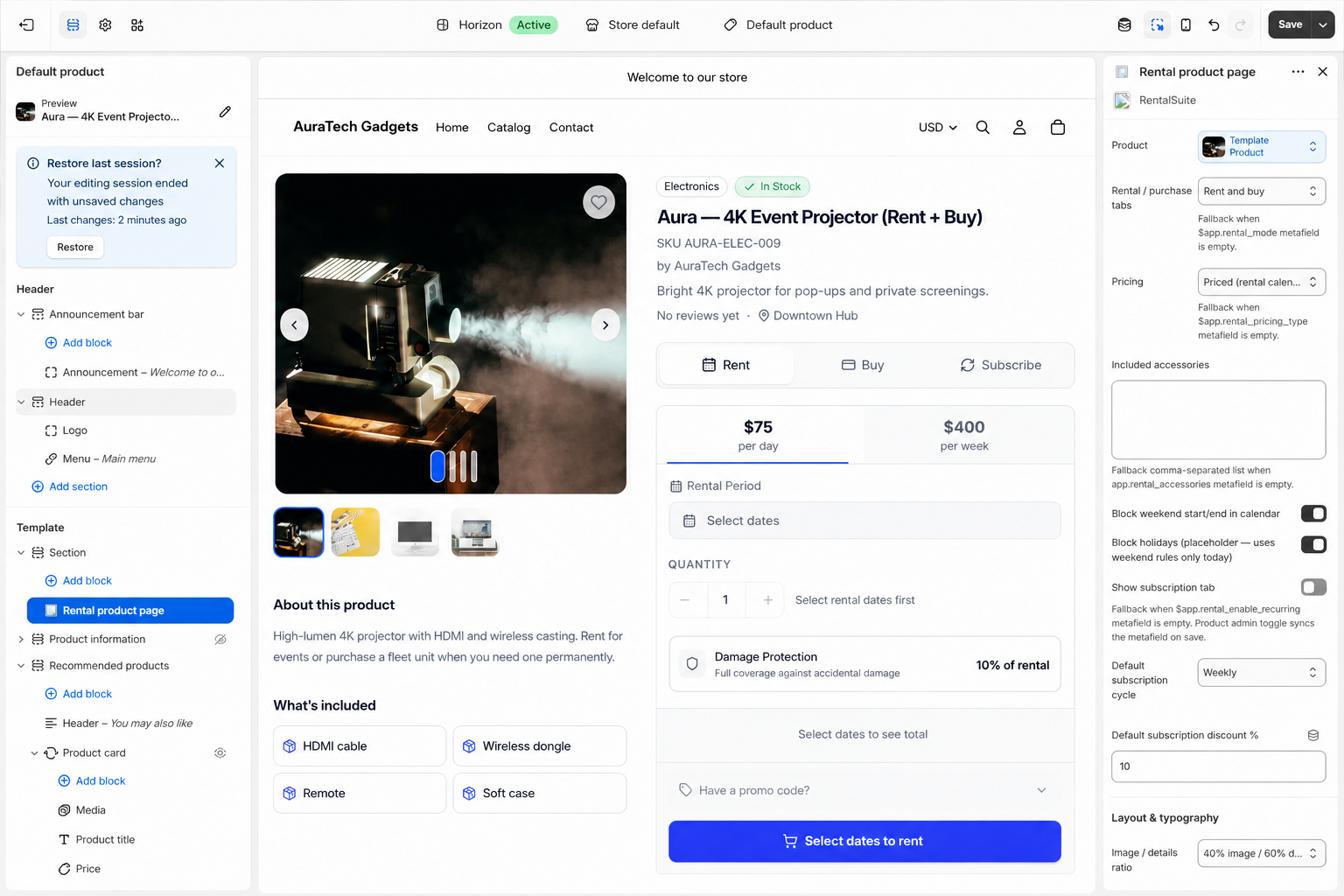
One product template, two PDP modes
Use one product template with both Rental product page and your theme’s Product information section enabled. Rental Suite switches per product (no global hide):
| Product in Rental Suite | What shoppers see on the PDP |
|---|---|
| Linked (managed) | Rental block — Rent / Buy / Subscribe, dates, rates |
| Unlinked or never linked (native) | Theme Product information — normal Shopify price and Add to cart |
Linked products appear in Admin → Products and in the Rentals collection (/collections/rentals). Unlinked catalog items stay on /collections/all and other Shopify collections with a normal buy experience.
2. Enable app embeds (theme-wide)
Turn on Rental Suite embeds for cart guard, collection cards, and post-checkout sync. This is separate from the product page block above.
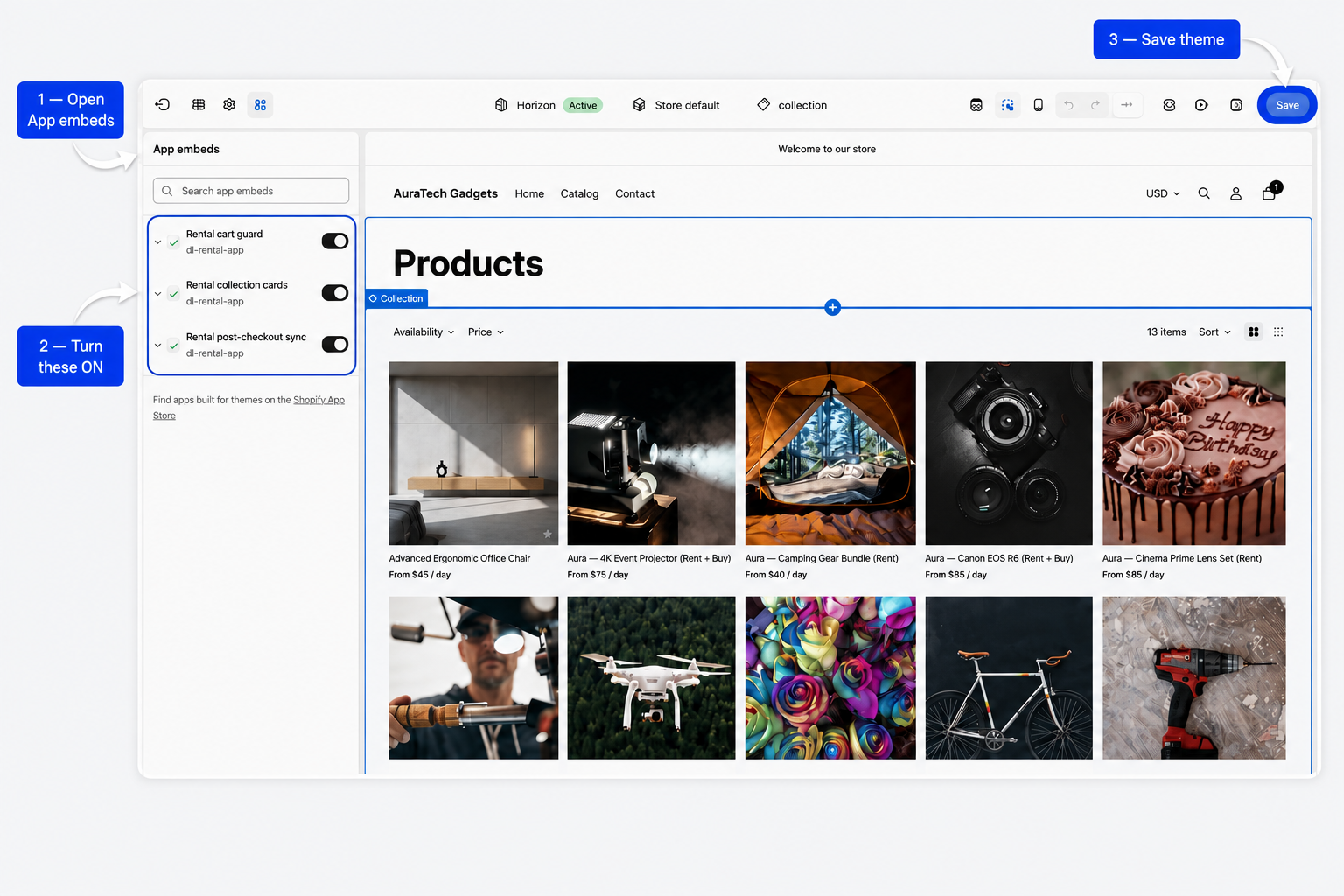
- In the theme editor, open Theme settings → App embeds (left sidebar).
- Turn ON these Rental Suite embeds:
- Rental cart guard (required for cart promos and booking holds)
- Rental collection cards
- Rental post-checkout sync
- Click Save (top right).
Holds & stock
- Optional cart holds protect inventory while shoppers browse.
- Payment holds can start at begin-checkout.
- Sellable stock uses the same capped math as New Booking in admin.
Troubleshooting
| Symptom | Check |
|---|---|
| No Rent/Buy UI on the product page | Rental product page block on the product template? Product linked in app? |
| Duplicate title, price, or buy box on a linked product | Both sections should stay enabled in the theme editor; hard-refresh. Confirm the product is linked and the Rental product page block is on the template |
| Normal product shows rental skeleton or broken rental UI | Product is not linked — expected native theme PDP; rental block should clear after load |
| “Could not load availability” | App proxy / hosted backend reachable; product SKU set |
| Cart/collection helpers don’t appear | App embeds toggles ON for Rental Suite; Save theme |
| Dates never ready | Availability rules and stock on the product |
| Totals look wrong | Rates on Details & Pricing; refresh after save |
Checkout & customer account blocks (optional)
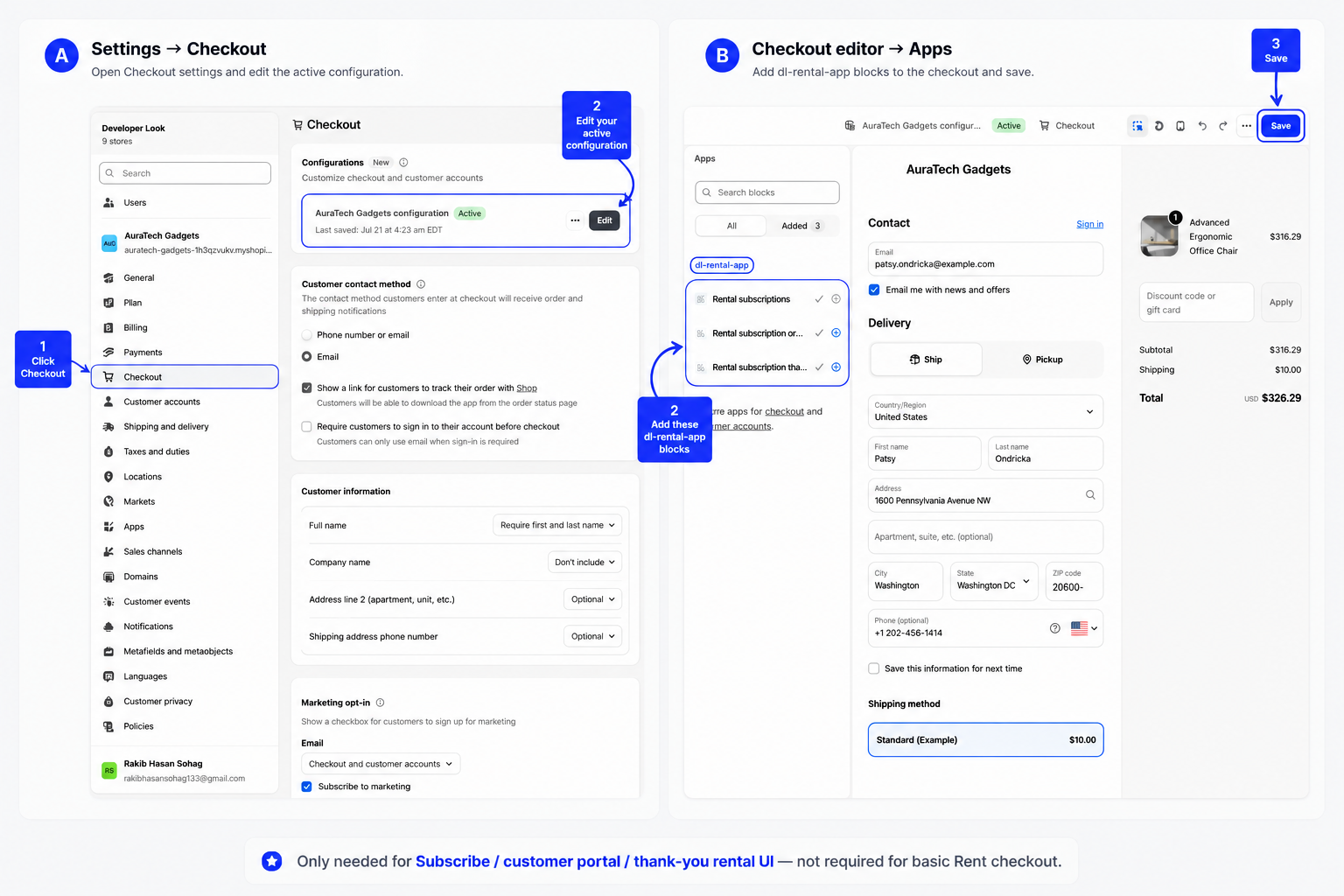
If you use Subscribe and want the customer portal / thank-you rental UI, add Rental Suite blocks in Shopify checkout configuration (not the theme editor).
Customer account page
- In Shopify Admin, open Settings → Checkout.
- Under Configurations, open Customer accounts for your active configuration (or click Edit, then select Customer accounts in the checkout editor).
- Add Rental subscriptions to the Customer account page.
Customer account menu
Customers need a Subscriptions link in the account menu—not only the block on the page.
- When Shopify shows “To give customers access to this page…”, click Add to menu.
- Or open Content → Menus, edit Customer account main menu, and add a menu item labeled Subscriptions that links to Rental subscriptions.
- Save the menu.
Thank you & Order status
- In the same checkout configuration, open Thank you and add Rental subscription thank you.
- Open Order status and add Rental subscription order link.
- Save and publish the checkout configuration.
Test on your store
- On your live storefront, sign in as a customer.
- Open Subscriptions from the account menu (not Profile).
- The checkout editor preview cannot authenticate customers—a brief error there is expected. Always verify on the live store while signed in.