Storefront rentals for Shopify
Give shoppers Rent, Buy, and Subscribe on the product page, with live availability, clear rates, and checkout helpers from Rental Suite.
Publish a rental-ready product experience without custom theme engineering.
Product page
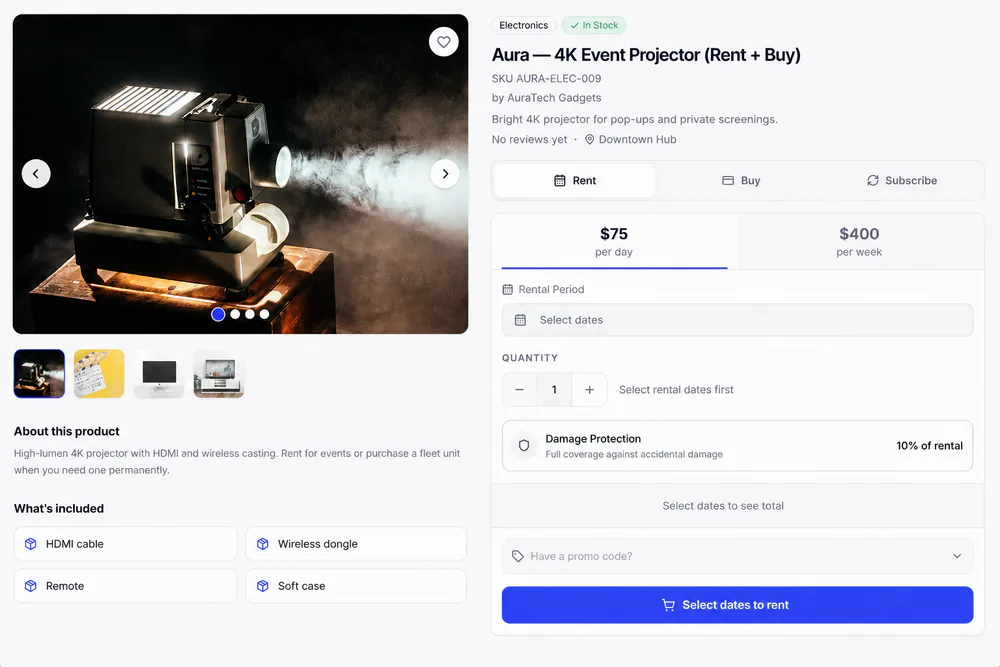
Rent, Buy and Subscribe sit as tabs on one Shopify product page. Shoppers pick dates on a live availability calendar, see the total and check out under the same stock rules as admin bookings.
One theme app block shows the rental UI on linked products, while every other product keeps your theme's normal buy box.
Shopper view
One product page for every rental mode
Each tab shows up only when that mode is on for the product, so shoppers switch modes without leaving the page.
Shoppers pick a date range and quantity, add Damage Protection if you offer it, and see every line of the total before Rent Now.
Longer ranges switch to your weekly or monthly rateQuantity stops at the units free for those datesAny security deposit is part of Total due now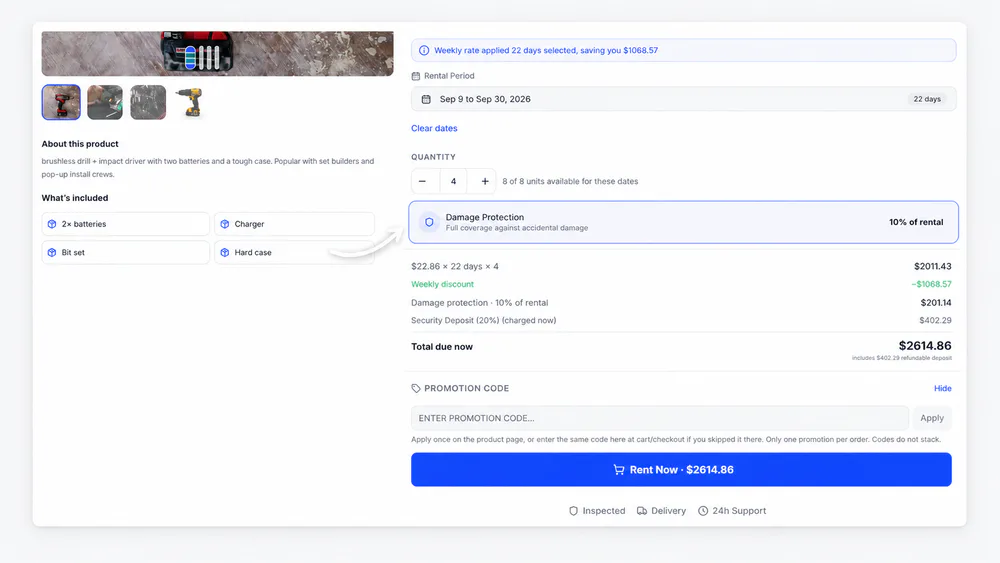
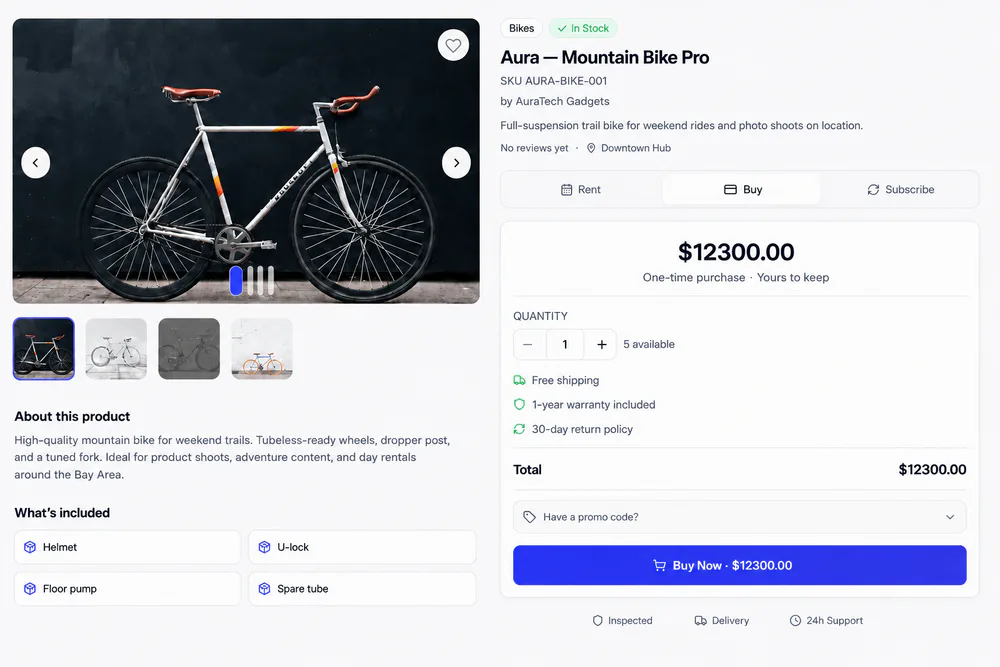
A one-time purchase with the units available and a Buy Now total. Sales come from the shared fleet or from units you mark Buy-only.
Plan tabs show each billing cycle with its discount, the shared-pool slots left and a Subscribe button priced per cycle.
Customers sign in to subscribeThey manage it from Subscriptions in their account menu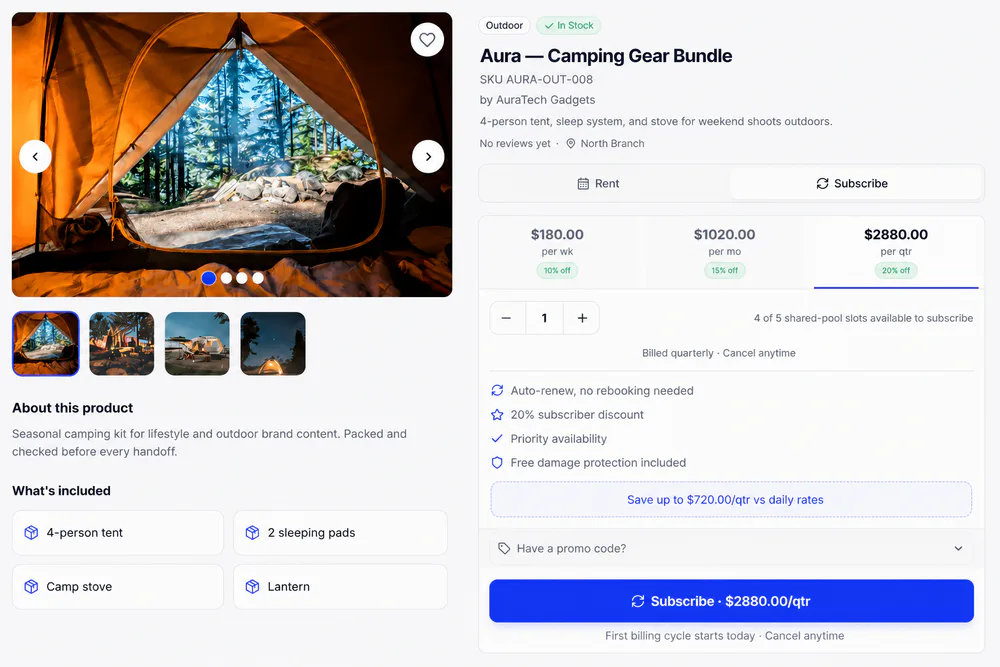
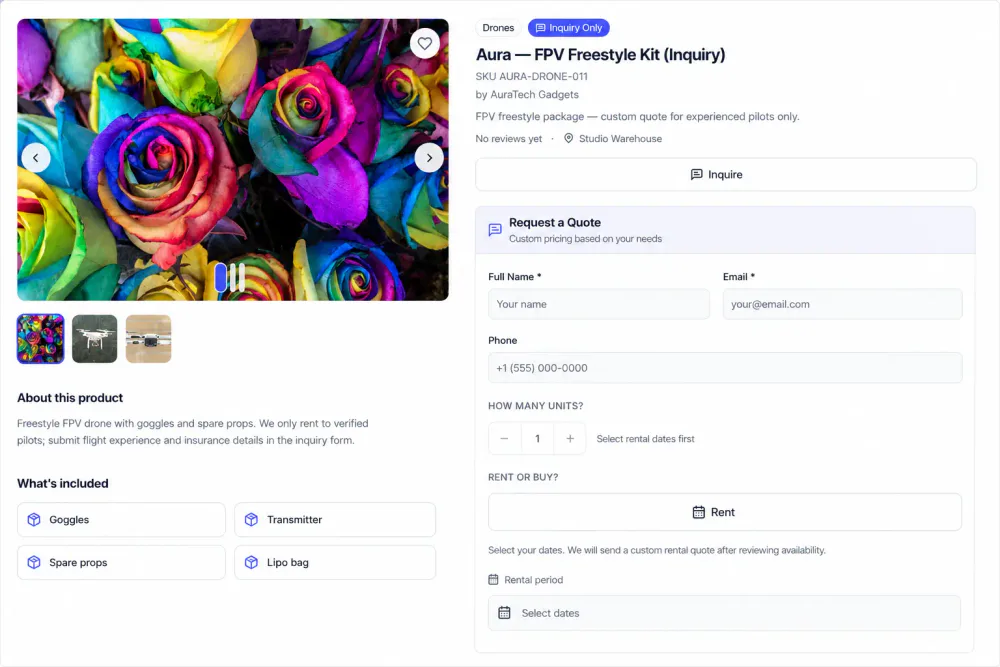
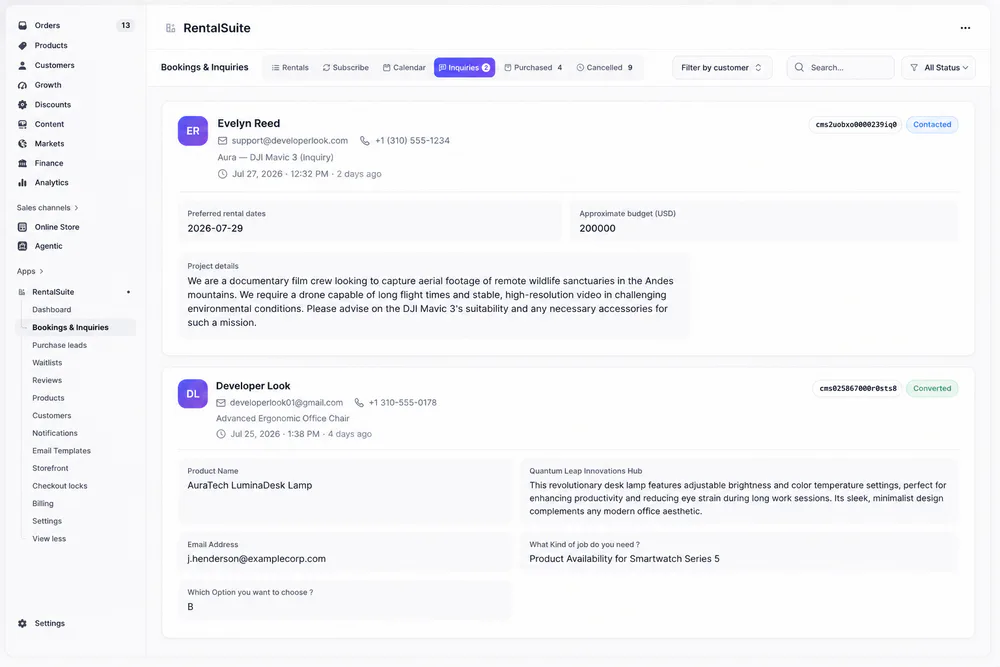
Inquiry-priced products show a Request a Quote form instead of checkout. Each request lands on the Inquiries tab in admin.
Setup
Publish from the theme editor
Open Storefront in Rental Suite to jump to your product template, add the block once, and every linked product uses it.
Add it as its own Apps section on the product template, below the breadcrumb, and keep your theme's Product information section enabled.
Linked products get the rental UIOther products keep the theme's buy boxBlock settings cover layout ratio and font size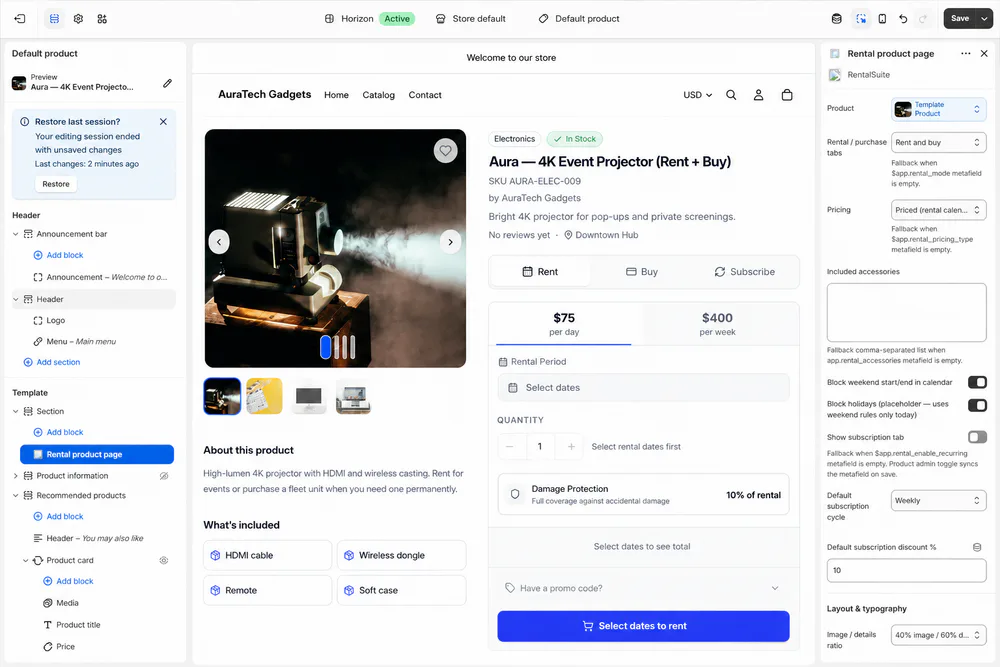
Under App embeds, switch on Rental cart guard, Rental collection cards and Rental post-checkout sync, then save the theme.
Cart guard: cart promos and booking holdsCollection cards: Sold out badges from rental stockPost-checkout sync: picks up missed paid orders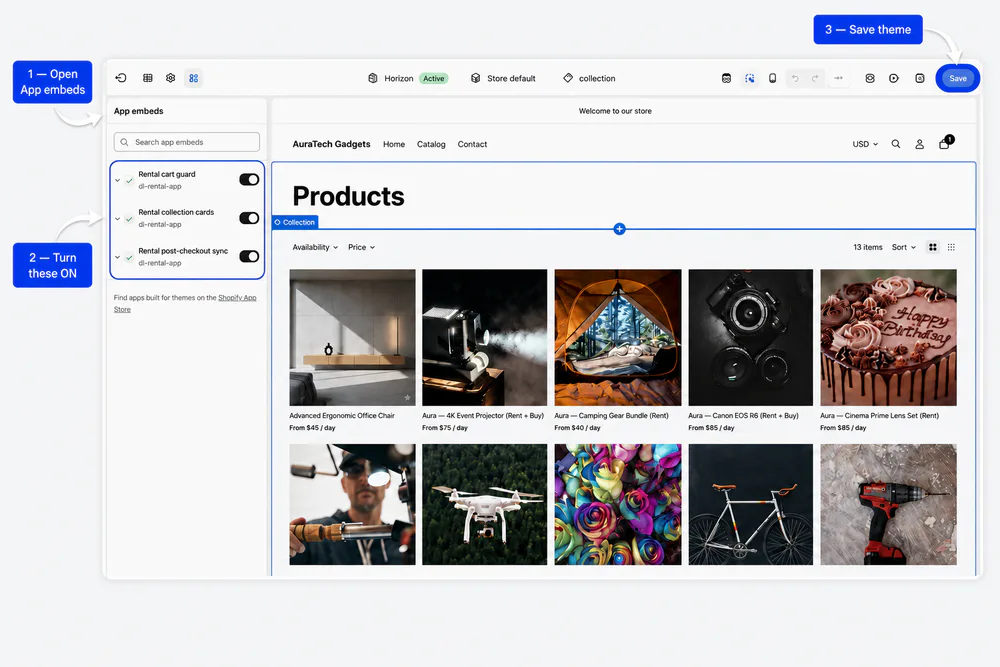
Only needed for Subscribe. In Shopify's checkout settings, add Rental subscriptions to the customer account page, plus the thank-you and order status blocks.
Basic Rent checkout works without them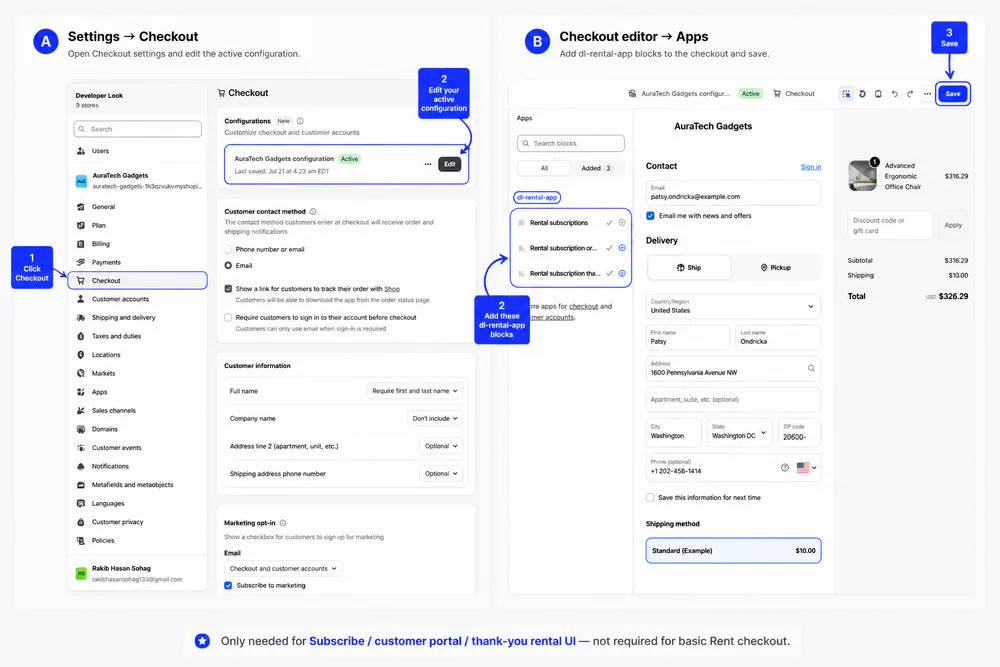
A payment hold keeps stock and dates reserved while the customer is on Shopify checkout. Turn on cart holds on the Checkout tab in Settings to reserve from the cart too.
Payment hold: 60 minutes by defaultCart hold: off by default, 15 minutes when onUnpaid bookings cancel when the hold ends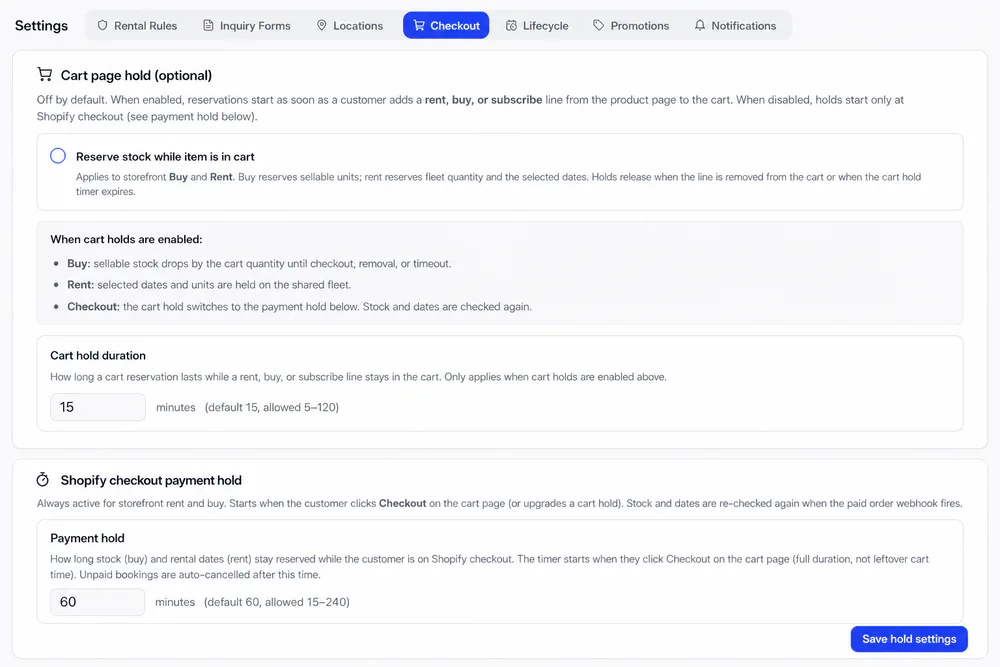
Rent tab
What shoppers see on the Rent tab
Rates, dates, stock and add-ons come from the product's rental profile, so the page matches what you set in admin.
Date picker
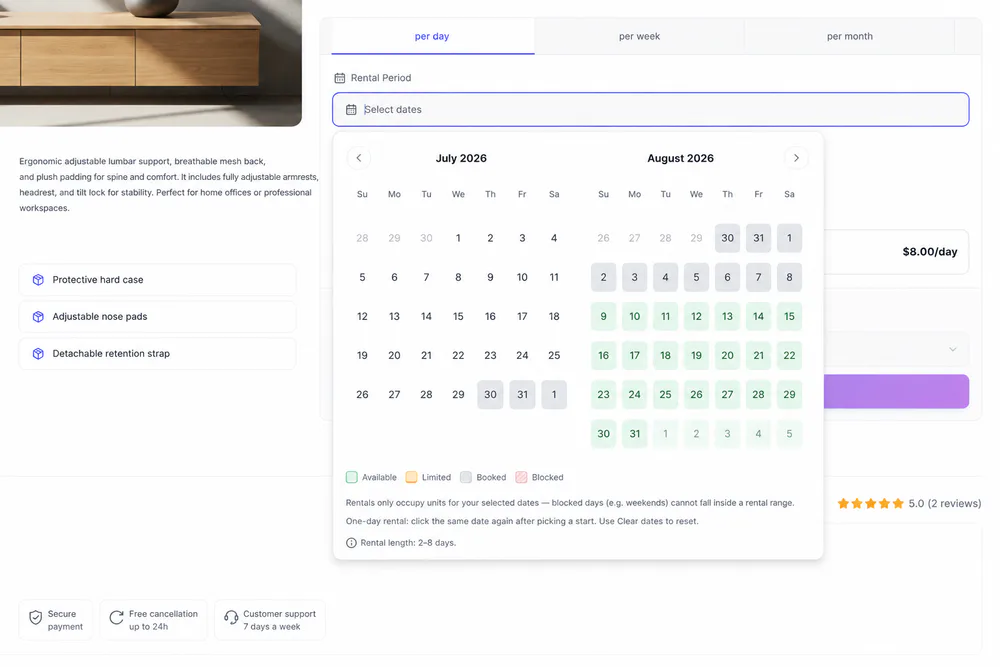
A calendar built for rentals
Shoppers see which days are available, limited, booked or blocked before they pick a range. Blocked days can't fall inside a rental, and the allowed rental length shows below the calendar.
Related
Works with the rest of Rental Suite
FAQ
Storefront rentals questions
Common questions about the Rental Suite storefront rental experience.
Usually no. Add the Rental product page app block from the theme editor. Optional embeds cover collection cards and cart guard.
Yes. Enable the modes you want on the product profile. Shoppers switch tabs on the same product page. You do not need three separate products.
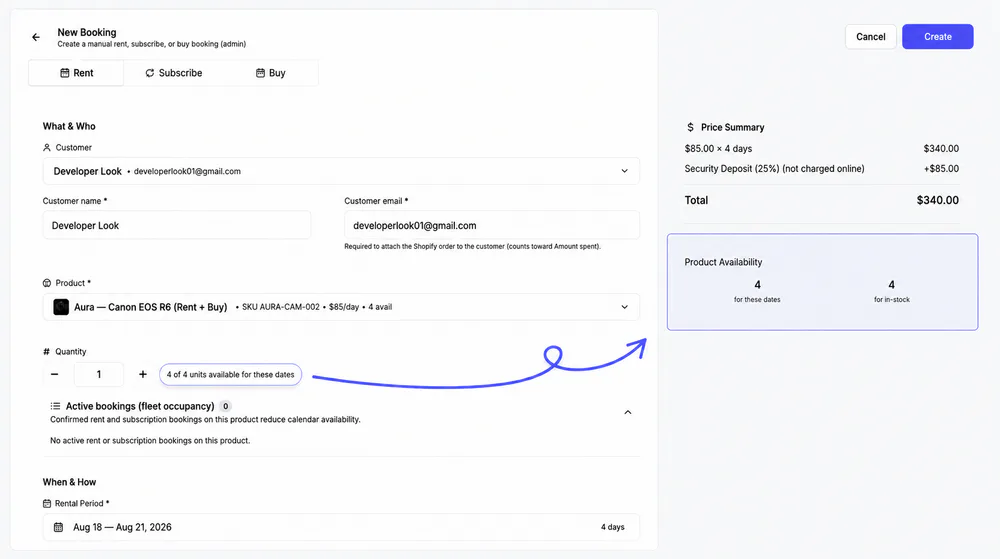
Rental Suite validates ranges against rental rules, occupancy, and holds: the same checks used when creating bookings in admin.
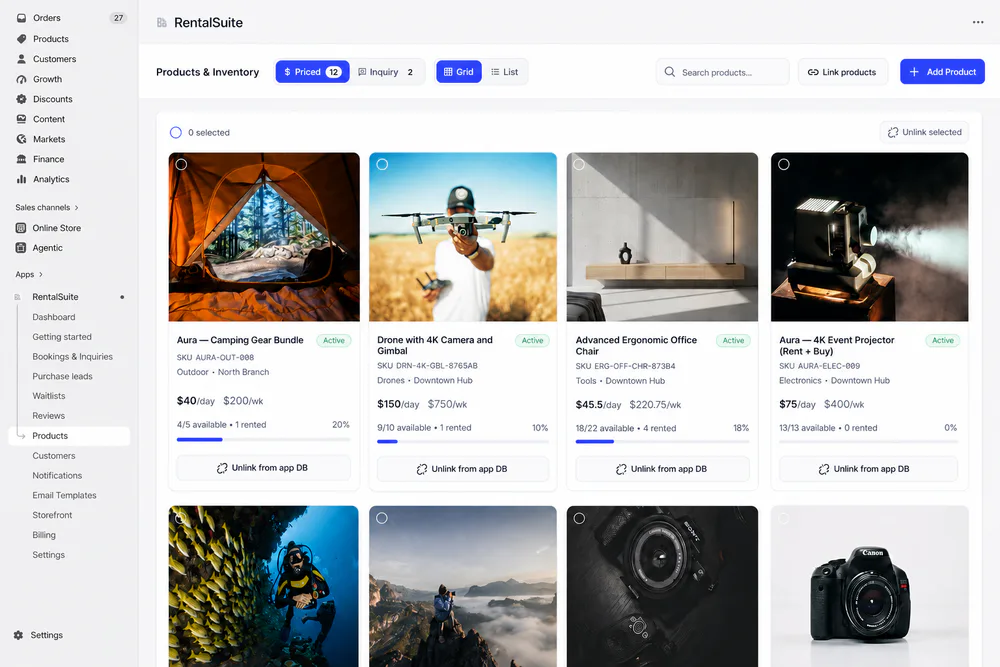
Open Storefront inside the app for guided theme setup, then link products under Products.
Get started
Start taking rentals on Shopify today
Install Rental Suite, link your products and publish the rental block. Your first 20 rental bookings each month are free.
Your first hour
- Link a productProducts
- Set day, week and month ratesPricing
- Publish the rental blockTheme editor
- Take your first bookingBookings